Permission Tree Display Entries
The Permission Tree Display Entries interface controls how permission groups display in the profile group dropdowns in the patron search, or in a user’s account. If you have added or deleted a permission group that you will be assigning users to, you will want to make sure the corresponding updates are made in the permission tree display.
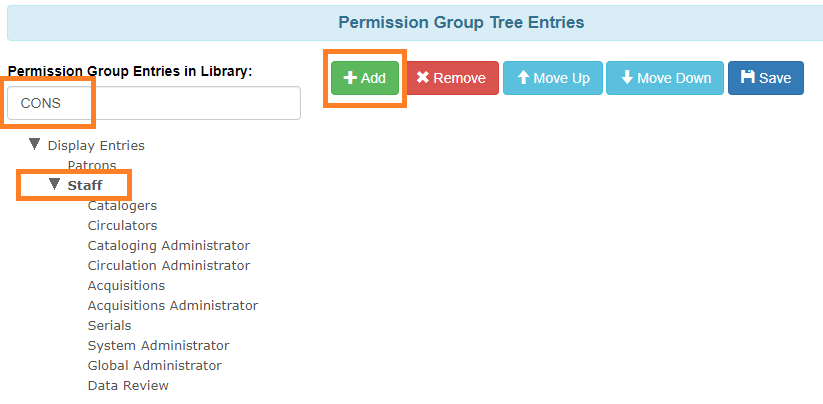
To edit the permission group display entries, go to Administration > Local Administration > Permission Tree Display Entries. To view all current display entries, choose the consortium level organizational unit under Permission Group Entries in Library to view the current display entries. If the location selector is not set to the consortium level, no entries will display.
Adding a Display Entry
To add a permission group to the tree display:
-
In the permission tree, select the parent group for where you would like to add the group. For example, if you are adding a new Staff subgroup, click Staff.
-
Click Add.
-
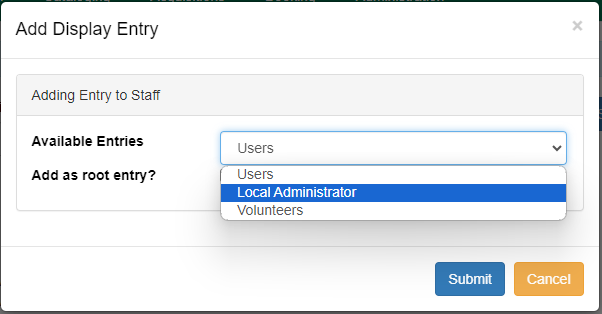
In the popup window, choose the permission group you would like to add from the Available Entries dropdown. Note that only permission groups not currently in the display tree will appear as options.
-
The Add as root entry? checkbox should be selected if the group you are adding should be a main category, for example, Patron. This setting only works if you click on the main Display Entries group. Otherwise, it will add a subentry.
-
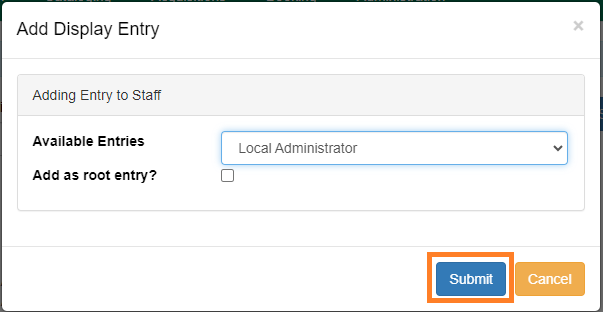
Click Submit. A “Display Entry successfully added” toast will appear at the bottom right of the screen.
-
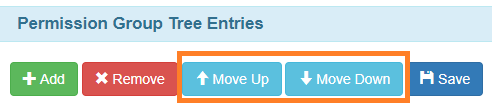
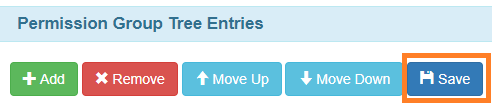
Use the Move Up and Move Down buttons at the top of the screen to change the order of the list if necessary.
-
Click Save.
Now the permission group should show in the Profile Group dropdown in the patron search and in the Main (Profile) Permission Group dropdown in a user’s account edit tab.
image::permission_tree_display_entries/perm_tree_display_profile_dropdown.png [Patron search profile group dropdown]
Deleting a Display Entry
To remove a permission group from the tree:
-
Click on the permission group name you would like to delete.
-
Click Remove. A “Display Entry successfully removed” toast will appear at the bottom right of the screen. +image::permission_tree_display_entries/perm_tree_display_remove.png[Remove permission display entry]
You do not need to click Save after adding or removing groups; the entries will refresh automatically. You only need to click Save when you use the Move Up and Move Down functions.