Permissions
The Permissions, or Permissions List, interface is where individual permissions can be managed from the staff client. The interface is accessed through Administration > Server Administration > Permissions. It displays the permissions available through your default installation of Evergreen along with any custom permissions that have been created locally.
The table of permissions includes three columns:
-
ID: Displays the permission’s ID as it appears in the Evergreen database.
-
Code: Displays the name of the permission as it appears in the Evergreen database.
-
Description: States what action the permission allows the user to do.
The Permissions List in the appendix provides a list of available permissions with their descriptions.
Creating a New Permission
To create a new permission:
-
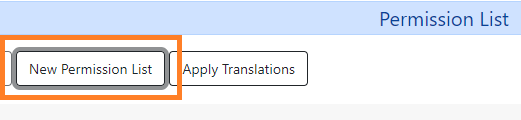
Click the New Permission List button.
-
Input the code and description for the permission and click Save.
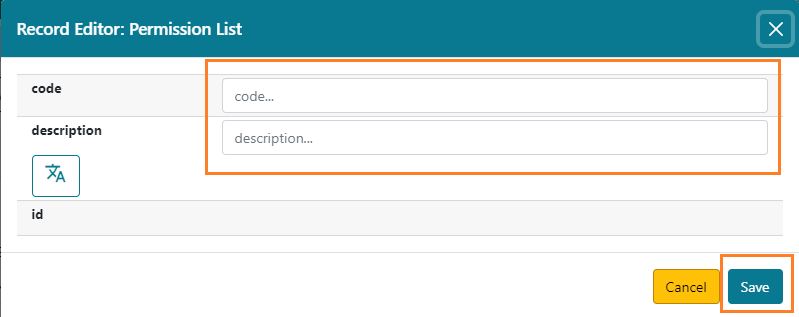
Once the permission is created, it will show up in the Add Mapping options in the Permissions Group interface, as well as the permissions list in the User Permission Editor.
Editing a Permission
To edit a permission:
-
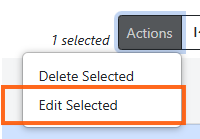
Click on the line of the permission entry and click Edit Selected from the Actions menu. You can also right-click on the permission entry and make the selection from the dropdown menu.
-
Make any necessary edits and click Save.
Deleting a Permission
To delete a permission:
-
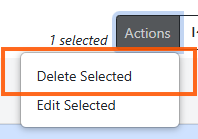
Click on the line of the permission entry and click Delete Selected from the Actions menu. You can also right-click on the permission entry and make the selection from the dropdown menu.
-
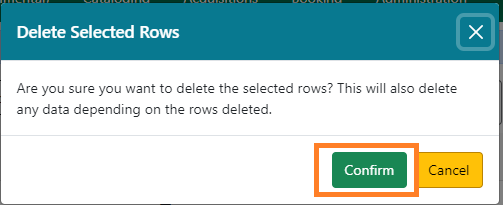
A dialog box will appear to confirm if you would like to delete the permission. Click Confirm.