Kids OPAC
Introduction
The Kids’ Catalog (KPAC) is a public catalog search that was designed for children and teens. Colorful menu items, large buttons, and simple navigation make this an appealing search interface for kids.
For steps on configuring the KPAC, see Kids’ OPAC Configuration.
Access the Kids’ Catalog
To access the catalog, you can click the Kids’ Catalog link in the header of the main public catalog (OPAC), or you can go directly to the URL at https://[domain]/eg/kpac/home.
Search the Kids’ Catalog
You can search the catalog using the search bar at the top of the screen or by clicking on a topic in the grid.
Search Using the Search Bar
The following filters are available when completing a search:
-
Search words: Type in your search terms here.
-
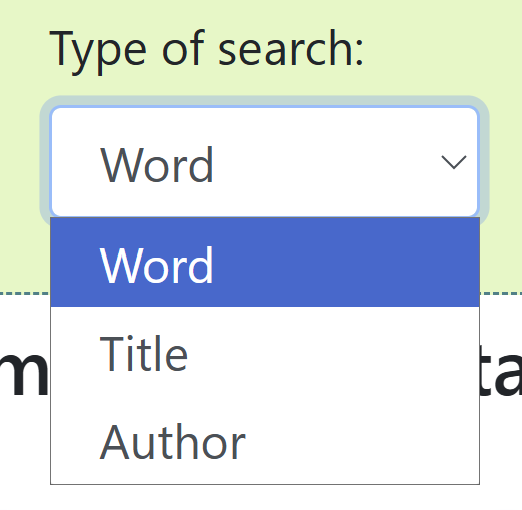
Type of search: Options include Word, Title, and Author. Word is the default.
-
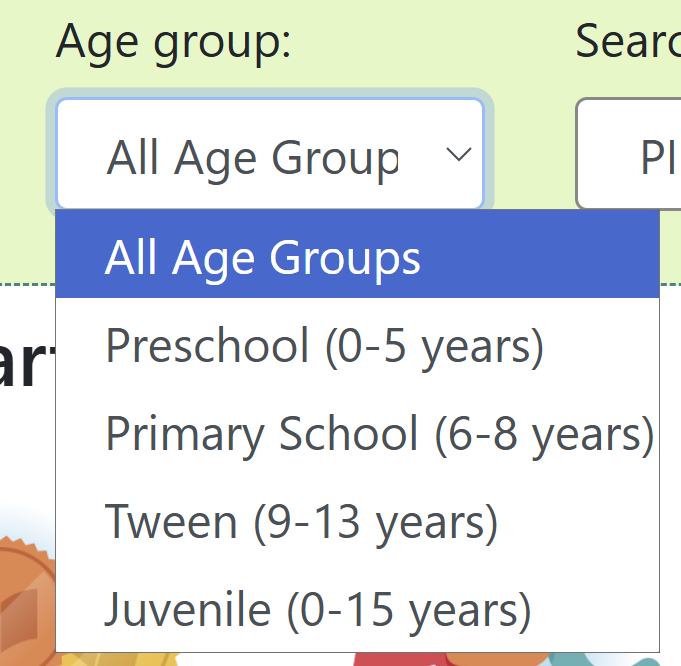
Age group: All Age Groups is the default. Age groups include Preschool, Primary School, Tween, and Juvenile.
-
Library selector: Click the dropdown to narrow the search to a system or branch.
To search the catalog from the homepage, enter text into the search bar in the center of the main page, or enter text into the search bar to the right of the results on a results page, and click Search.
Search Using the Grid
From the homepage, you can click on a topic icon in the grid to see the list of search results within that topic.
Note that some topics have further subtopics that you can filter by.
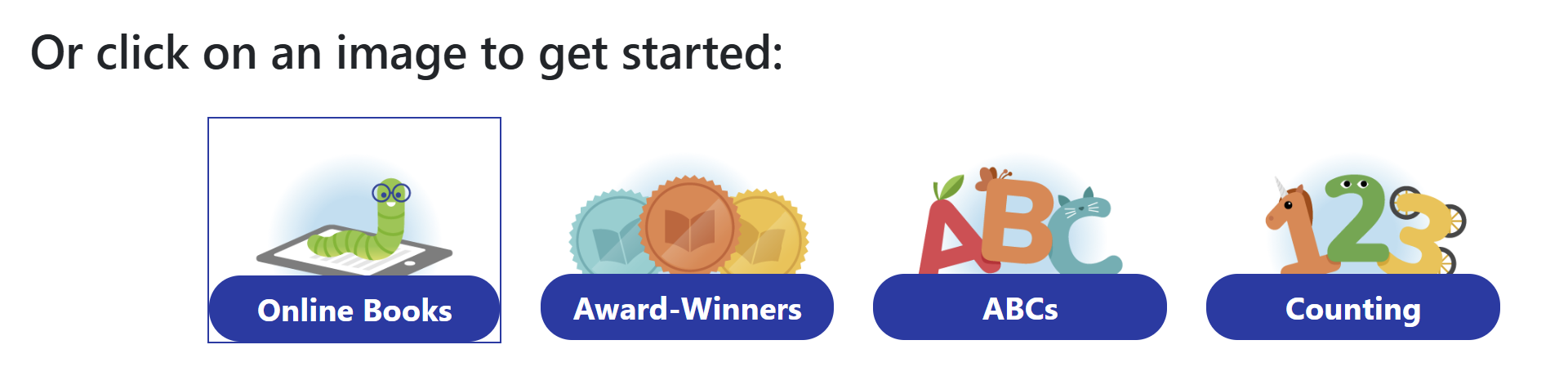
In the screenshot below, the Counting topic was chosen. When viewing the results, you can see the default search terms input to produce results on the topic.

An icon search can link to an external web link or to a canned search. For example, the icon for Musical Instruments, could link to the results of a catalog search on the subject heading, Musical instruments.
You can add multiple layers of icons and searches to your grid.
Brief information displays for each title in the search results.
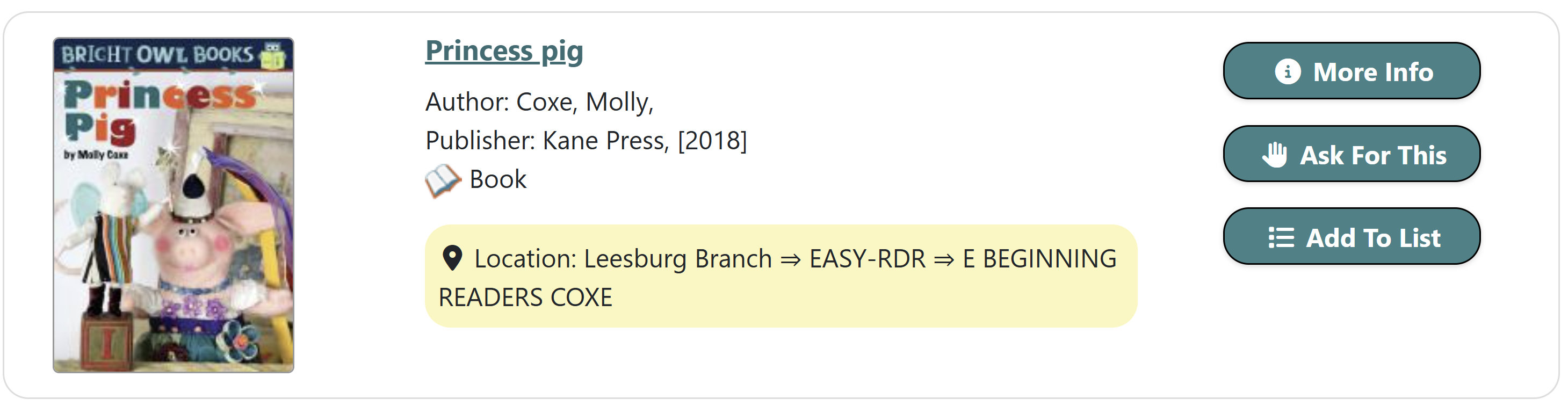
For full details on a title, click More Info. The full details display the configured fields from the title record and item information. Click Show more copies to display more results.
Place a Hold
To place a hold:
-
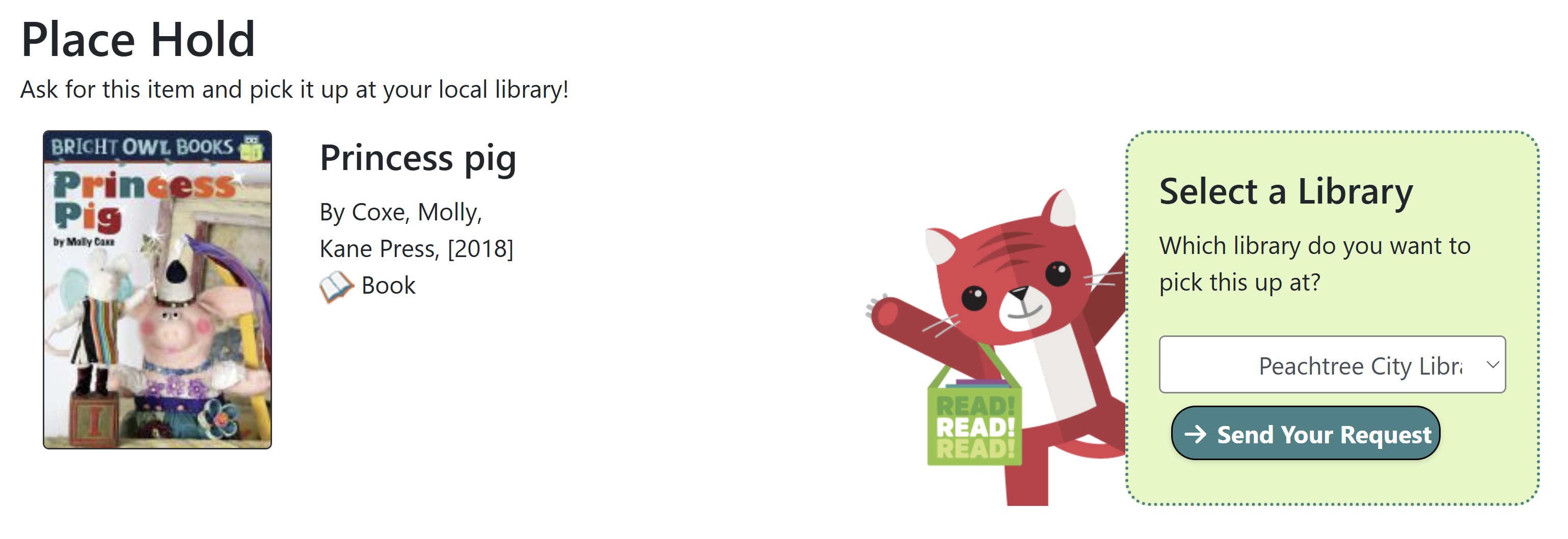
From either the search results or on the title record page, click Ask for This.
-
You will be led to a Place Hold screen, where you will be prompted to log in if you have not logged in already.
-
Once logged in, use the Select a Library dropdown to select the pickup location.
-
Click Send Your Request.
If the hold succeeds, you will get a confirmation message.
![Alert text: Hold Successful! Hooray! Your request for [title] was successful. We will contact you when your item is ready to pick up at [library]](_images/kpac/kpac_place%20hold_success.png)
If the hold fails, you will receive a fail message:
![Alert text: Hold Failed. We’re sorry. We were unable to request [title] for you. Please ask a librarian to help.](_images/kpac/kpac_place%20hold_fail.png)
You can return to the previous record or to your search results. Use the breadcrumbs at the top to trace your search history.

Save Titles to a List
You can save titles to a temporary list, or, if you are logged in, you can save a title to one of your existing lists. If you need to create a new list, you will be prompted to do so in your account in the main catalog.
To save items to a list:
-
Click Add to List.
-
Choose the list name from the Select a List dropdown menu.
-
Click Add to Your List.
You will receive a success message with links to that specific list and all of your lists, which will open in the main public catalog.
![Alert text: Hooray! You have added [title] to your list. To access your lists go to My Lists](_images/kpac/kpac_add%20to%20list_success.png)